 Busy Homeoffice for Windows · Teams, Slack and Zoom stay active
You take a break. Your home office looks busy.
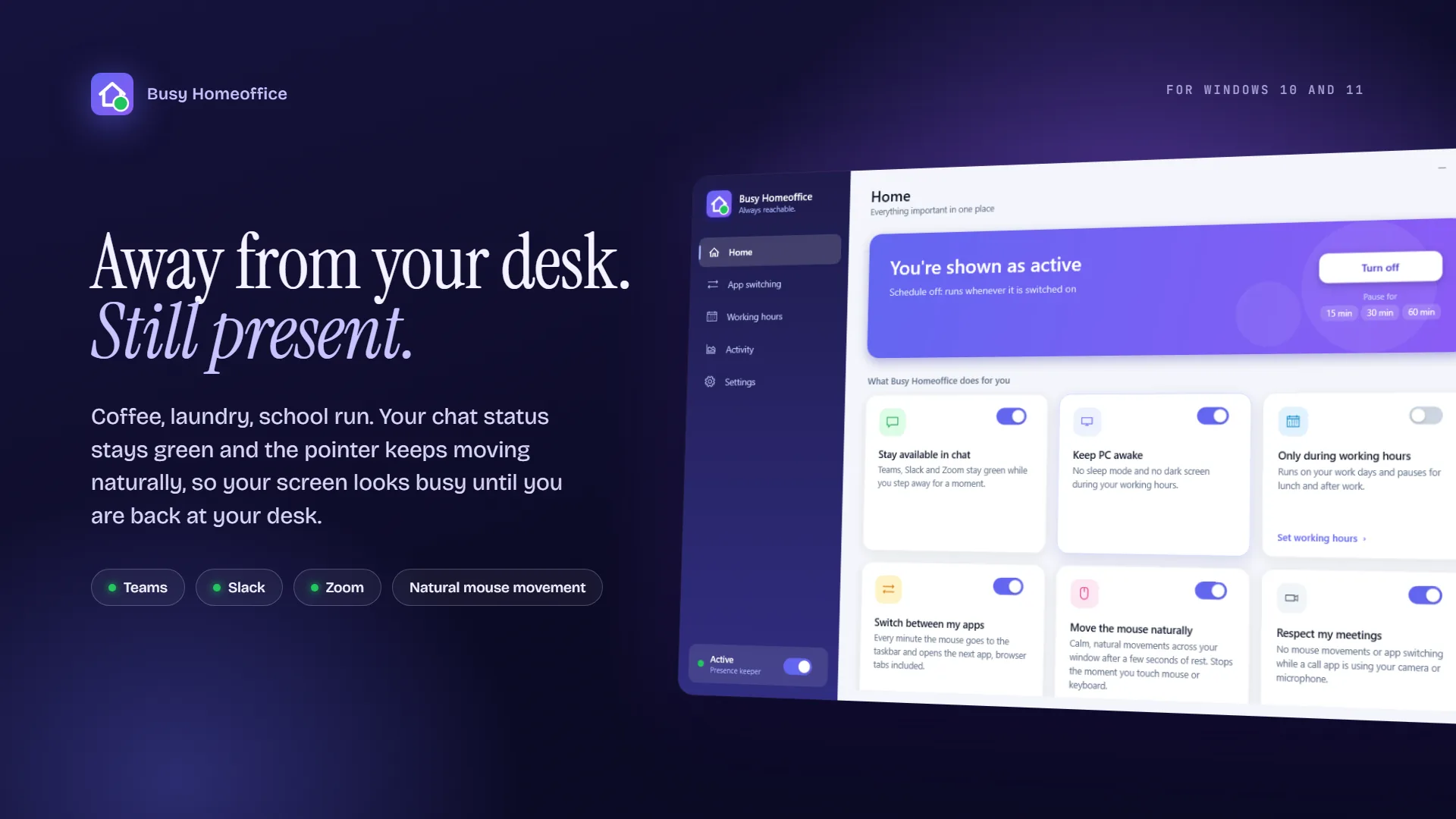
Coffee, laundry, the parcel at the door. Your Teams, Slack and Zoom status stays green, your screen stays on, and your pointer keeps moving until you are back.
$2.99
For Windows 10 and 11
Your break. Your business.
Store trailerA smarter mouse jiggler
Most tools twitch the pointer by one pixel. Busy Homeoffice moves like a person.
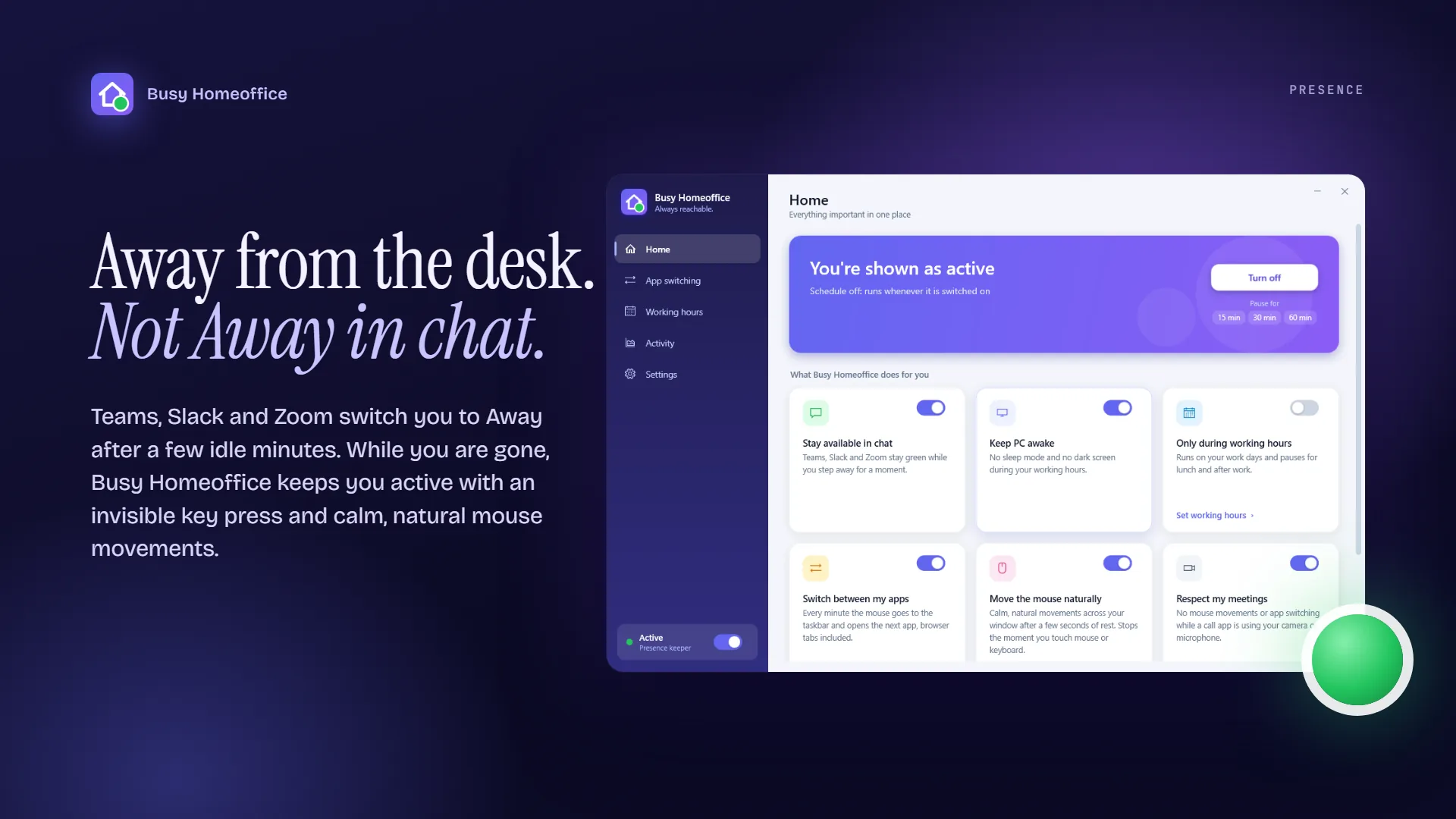
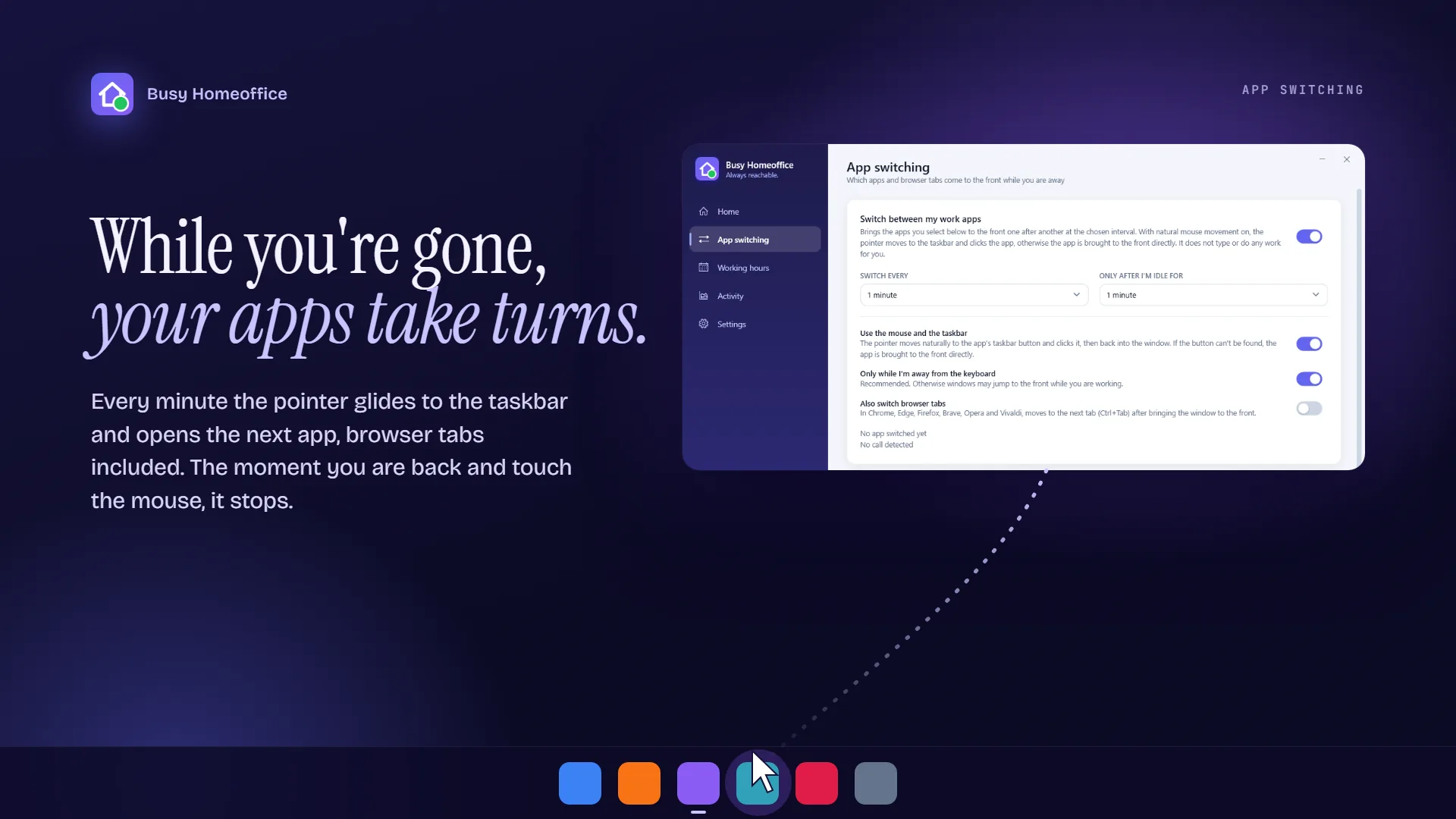
Curved paths, changing speed, real pauses. It even switches between your open apps and browser tabs, so your PC looks like someone is working at it.
A typical mouse jiggler
The same tiny twitch, again and again.
- Same move every few secondsEasy to spot
- No app activityLooks idle
- Runs until you turn it offEven at night
Busy Homeoffice
Natural, varied movement across the screen.
- Curves, speed changes, pausesLooks human
- Switches apps and tabsLooks busy
- Only during your working hoursRests after
Stay active in your home office
Five minutes of laundry. Not five minutes of “Away”.
Teams, Slack and Zoom turn you yellow after a few idle minutes, and suddenly someone asks “Are you still there?”. Busy Homeoffice keeps the dot green while you step away.
Teams, Slack and Zoom stay active
Teams, Slack and Zoom stay green while you step away for a moment, instead of switching you to “Away”.
Your PC stays on
No sleep mode and no dark screen during your working hours, with an invisible key press in the background.
Moves the mouse naturally
Calm, natural movements across your window after a few seconds of rest. Stops the moment you touch mouse or keyboard.
Switches between your apps
Every minute the pointer glides to the taskbar and opens the next app, browser tabs included.
Respects your meetings
No mouse movement or app switching while a call app is using your camera or microphone.
Pause in one click
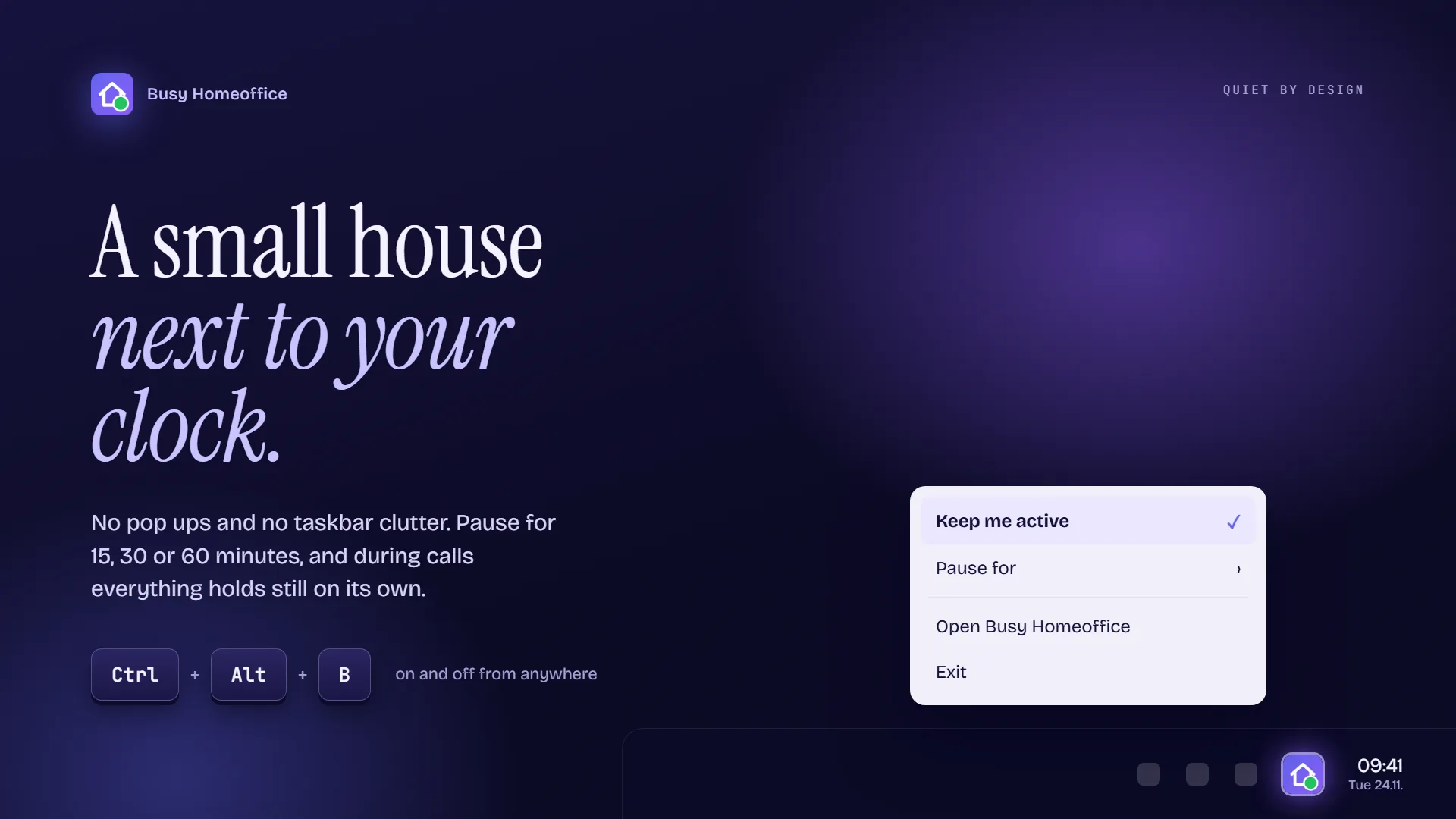
Pause for 15, 30 or 60 minutes from the tray icon, or switch it on and off anywhere with Ctrl + Alt + B.
Working hours
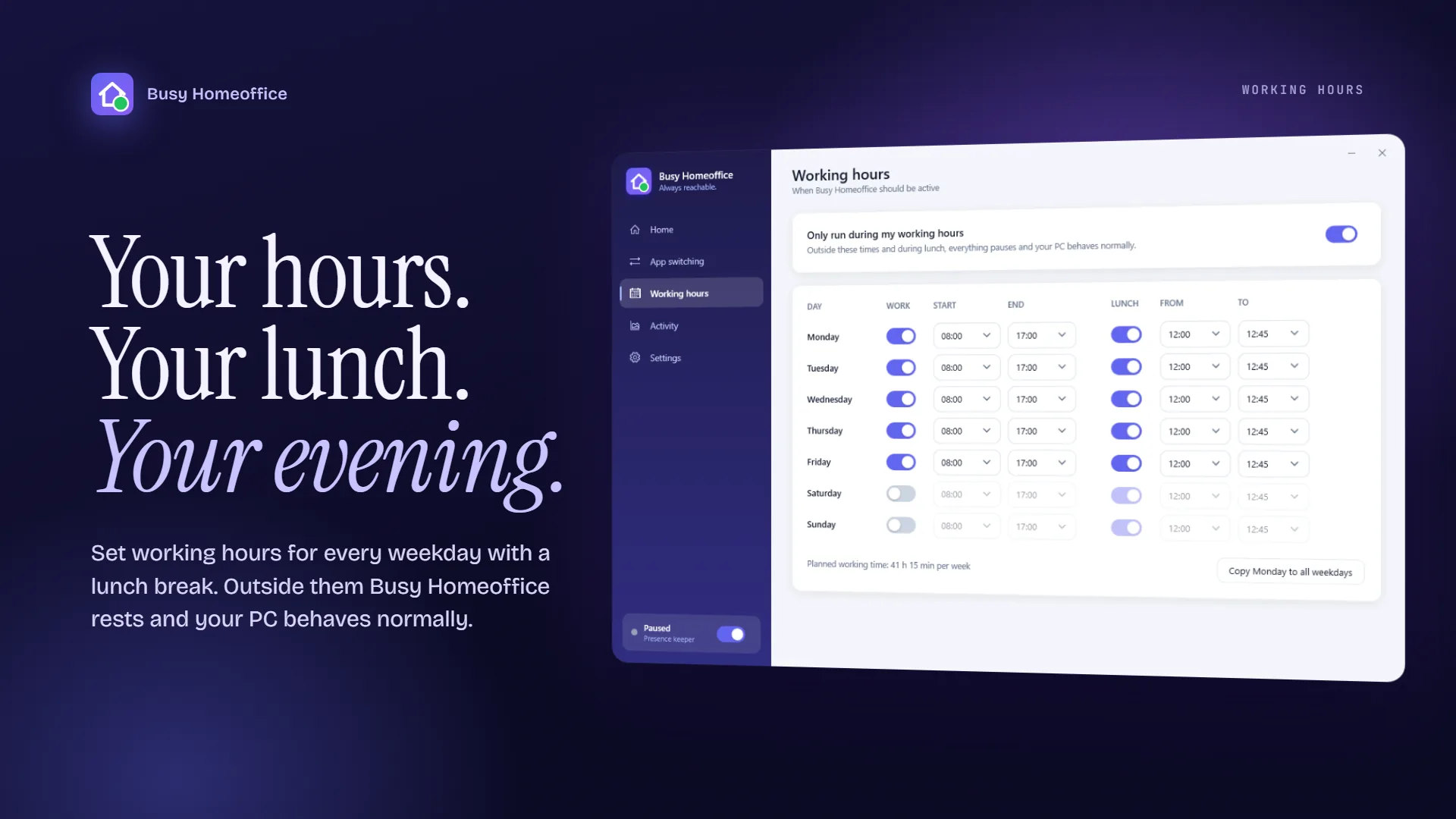
Your hours. Your lunch. Your evening.
Set working hours for every weekday with a lunch break. Outside them Busy Homeoffice rests, and your PC behaves normally.
The app
See Busy Homeoffice at work.
How it works
Set it up once. Enjoy your breaks.
Install
Get Busy Homeoffice from the Microsoft Store in one click.
Set your hours
Pick your working hours for each weekday and a lunch break.
Step away
Your PC stays awake and your status stays green.
Come back
Touch the mouse and it stops at once. Or pause it from the little house next to your clock.
Switching from another tool?
More than a mouse jiggler.
Looking for a Mouse Jiggler alternative, a USB jiggler without hardware, or something that does more than keep your PC awake? Here is how Busy Homeoffice differs.
Mouse Jiggler alternative
The free Mouse Jiggler app nudges the pointer at a fixed interval while it is switched on. Busy Homeoffice moves in natural paths, switches apps and runs only during your working hours.
USB mouse jiggler alternative
A USB jiggler is a small device you plug in, usually with just an on/off button. Busy Homeoffice is software: nothing to buy or plug in, with a schedule and a pause button.
PowerToys Awake alternative
Microsoft PowerToys Awake keeps your PC from sleeping. Busy Homeoffice also keeps your PC awake, and adds mouse movement and app switching for Teams, Slack and Zoom.
Teams, Slack and Zoom in one
No browser tab to keep open and nothing to install per app. Busy Homeoffice works on the PC itself, so every chat app that checks for activity sees it.
Comparison based on public information as of November 2026. Mouse Jiggler, PowerToys, Microsoft Teams, Slack and Zoom are names of their respective owners. Busy Homeoffice is not affiliated with them.
Questions
Keep Teams green, Slack active and Zoom from going Away.
How do I keep my Teams status green and active when I step away?
Install Busy Homeoffice and switch it on. While you are away, it moves the mouse naturally and keeps your PC awake, so Microsoft Teams keeps showing you as Available instead of switching you to Away after a few idle minutes.
Does it keep Slack and Zoom active too?
Yes. Slack, Zoom and Teams all set you to Away when your PC looks idle. Busy Homeoffice keeps the PC active, so all three keep your status green.
Is Busy Homeoffice a mouse jiggler?
Yes, a smarter one. Instead of twitching the pointer by one pixel, it moves the mouse in calm, natural paths and switches between your open apps and browser tabs about once a minute.
How do I keep my PC on and stop it from going to sleep?
Busy Homeoffice keeps your Windows PC awake and the screen on during your working hours, with an invisible key press in the background. Outside your working hours your PC goes back to its normal sleep settings.
Do I need a USB mouse jiggler device?
No. Busy Homeoffice is software for Windows 10 and 11. Nothing to plug in, nothing on your desk that moves.
Does it move the mouse during my video calls?
No. While a call app is using your camera or microphone, Busy Homeoffice does not move the mouse or switch apps.
How do I stop it?
Just touch the mouse or keyboard and it stops right away. You can also pause it for 15, 30 or 60 minutes from the icon next to your clock, or press Ctrl + Alt + B.
Why does Teams show me as Away after 5 minutes?
According to Microsoft, Teams sets your status to Away after about 5 minutes without activity, when your computer goes to sleep, or when you minimize Teams. Busy Homeoffice keeps your PC active and awake, so the 5-minute timer never runs out while you step away.
How do I keep Slack always active?
Slack switches you to Away when your computer looks idle. With Busy Homeoffice running, your PC stays active during your working hours, so Slack keeps your green dot.
How do I stop Zoom from setting me to Away?
Zoom sets your status to Away when your PC is idle or asleep. Busy Homeoffice keeps the PC active and awake, so Zoom keeps showing you as available.
What is the best mouse jiggler for Windows?
It depends on what you need. Simple jigglers just nudge the pointer. Busy Homeoffice moves the mouse naturally, switches apps, follows your working hours with a lunch break, pauses during calls and stops the moment you touch the mouse.
Can my employer detect a mouse jiggler?
That depends on the monitoring tools your company uses, so we cannot promise anything here. Busy Homeoffice is a normal app from the Microsoft Store and does not hide itself. Check your company's rules before you use it at work.
You take the break. Your green dot doesn't.
Get Busy Homeoffice from the Microsoft Store and set your working hours in a minute.
$2.99
Get it fromMicrosoft Store